In today’s fast-paced digital world, staying organized and ensuring that your important conversations are always accessible is crucial. One of the most effective ways to do this is by syncing WhatsApp with email. Whether you’re a business professional or an individual looking to keep your messages safe, understanding how to sync WhatsApp with email can save you time and prevent data loss. This guide will walk you through the process, highlighting the best methods and tools available in 2024.
Why Sync WhatsApp with Email?
Syncing WhatsApp with email offers several benefits:
- Data Backup: Ensures that your important chats are backed up and easily retrievable.
- Accessibility: Allows you to access your WhatsApp messages from any device with email access.
- Organization: Helps in categorizing and managing your communications more efficiently.
With these advantages in mind, let’s explore the various methods to sync WhatsApp with email.
Method 1: Using Third-Party Tools
One of the most efficient ways to sync WhatsApp with email is by using third-party tools like Mobitrix WhatsApp Transfer and TunesKit WhatsApp Transfer. These tools offer a seamless experience for backing up and transferring your WhatsApp data to your PC or email.
Mobitrix WhatsApp Transfer
Mobitrix WhatsApp Transfer is ideal for backing up your WhatsApp data to a PC. It caters to the needs of both iPhone and Android users, ensuring a seamless transfer experience.
Key Benefits:
– Versatile Backup: Easily backup WhatsApp chats, photos, videos, stickers, links, and more to your PC.
– Fast and Reliable: Experience a swift backup process independent of your internet speed.
– Direct Access on PC: View your WhatsApp chat history, including all media and attachments, directly on your PC.
– End-to-end Encryption: Your data is securely encrypted during backup, providing added security.
Steps to Use Mobitrix:
1. Install and Run Mobitrix: Download Mobitrix WhatsApp Transfer and launch it on your PC.
2. Device Detection: Connect your iPhone or Android device to the PC. Allow Mobitrix to detect your device.
3. Initiate Backup: Once your device is detected, select “Back Up”. Choose to backup via Google Drive if preferred.
4. Completion Notification: Wait for Mobitrix to notify you that the backup process is complete. Then, you can transfer it to your new phone.
TunesKit WhatsApp Transfer
TunesKit WhatsApp Transfer is another excellent option for iPhone users. It allows you to back up WhatsApp data including chats, stickers, audio messages, documents, and contacts.
Key Features:
– One-click Backup: Back up all your WhatsApp messages from iPhone to PC with just one click.
– Supports Various Data Types: Transfers different types of WhatsApp messages and data.
– Easy to Operate: Clear and straightforward interface for easy use.
Steps to Use TunesKit:
1. Connect your iPhone to your PC
2. Back up WhatsApp messages
3. Check WhatsApp backup
Method 2: Using Built-in Features
WhatsApp also offers built-in features to help you sync your messages with email. While not as comprehensive as third-party tools, they provide a quick and simple solution for smaller chat histories.
Exporting Chats via Email (Android)
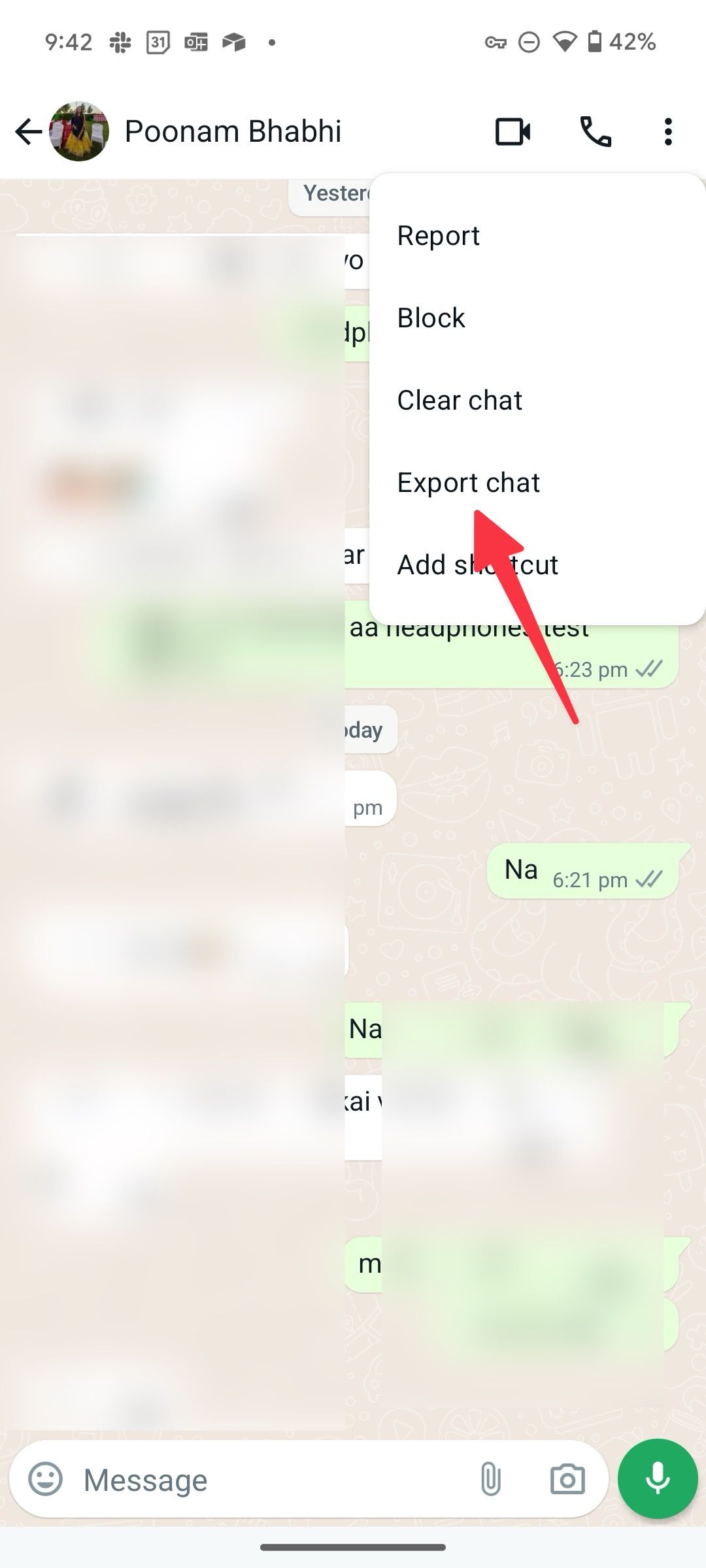
For Android users, exporting WhatsApp chats via email is a straightforward process.
Steps:
1. Open WhatsApp on your Android phone.
2. Find the chat you want to export and open the conversation.
3. Tap on the three-dot icon in the top-right corner of the chat screen.
4. Tap on More > Export chat.
5. Choose to export your chat Without Media or Include Media.
6. After selecting the email app, enter the email address you want to back it up to and hit send.
Exporting Chats via Email (iPhone)

iPhone users have a slightly different process for exporting WhatsApp chats via email.
Steps:
1. Go to the WhatsApp app on your iPhone and launch it with your account.
2. Go to the chat you desire to export and open the conversation page.
3. Tap on the contact/group name at the top to open the chat information screen.
4. Scroll down and tap on the Export Chat option.
5. You’ll be asked if you want to export the chat With Media or Without Media.
6. Select the email app you use and then enter your email address to which you want to send the chat and press send.
Method 3: Using Cloud Services
Cloud services like Google Drive and iCloud also offer ways to back up your WhatsApp data, which can then be accessed via email.
Google Drive Backup (Android)
Google Drive provides a convenient way to back up your WhatsApp data from Android to your PC.
Steps:
1. Back up to Google Drive: In WhatsApp, tap Menu > Settings > Chats > Chat backup. Choose ‘Back Up to Google Drive’ and start the backup.
2. Access Google Drive on PC: Log into the same Google Drive account on your PC and navigate to ‘Backups’ > ‘Storage’.
3. Transfer Files: Locate your WhatsApp backup and copy the files to your desired location on the PC.
iCloud Backup (iPhone)
iCloud offers a widely-used solution for backing up WhatsApp data from an iPhone to a PC, but it requires iOS 12 or higher for effective backup.
Steps:
1. Access iPhone Settings: Open the Settings app on your iPhone.
2. Navigate to iCloud Settings: Tap on your name at the top of Settings, then go to iCloud > iCloud Backup > Back Up Now.
3. Ensure WhatsApp is Included: Check that WhatsApp is enabled under Apps Using iCloud.
4. Download Backup from iCloud: Visit icloud.com or use the iCloud app on your PC, sign in, and download your WhatsApp backup.
Conclusion
Syncing WhatsApp with email is a valuable practice that ensures your important conversations are always accessible. Whether you choose to use third-party tools like Mobitrix or TunesKit, or opt for built-in features and cloud services, there are multiple ways to achieve this. By following the steps outlined in this guide, you can effectively sync your WhatsApp with email, enhancing your productivity and peace of mind.
About the Author