In today’s fast-paced digital world, communication is more important than ever. For many users, WhatsApp has become the go-to platform for messaging and connecting with others. However, there are times when users might want to switch from using a tel link protocol to a more streamlined method like a WhatsApp Chrome extension. This guide will walk you through the process of changing your tel link protocol to a WhatsApp Chrome extension, making your communication experience more efficient and user-friendly.
What is a Tel Link Protocol?
A tel link protocol is a URL scheme used to initiate a phone call or message from a web browser. It typically looks like “tel:+1234567890” and can be used to dial a number directly from a website. While this is useful for initiating calls, it may not always provide the best user experience, especially when trying to send messages or access other features within WhatsApp.
Why Use a WhatsApp Chrome Extension?
Using a WhatsApp Chrome extension offers several advantages over the traditional tel link protocol. Here are some reasons why you might want to make the switch:
- Seamless Integration: A WhatsApp Chrome extension allows you to access WhatsApp directly from your browser, eliminating the need to switch between apps.
- Enhanced Features: Extensions often come with additional features such as quick message sending, link generation, and QR code creation.
- Improved User Experience: With a Chrome extension, you can enjoy a more intuitive and user-friendly interface compared to the tel link protocol.
How to Change Tel Link Protocol to WhatsApp Chrome Extension
Changing from a tel link protocol to a WhatsApp Chrome extension involves a few simple steps. Below is a step-by-step guide to help you make the transition smoothly.
Step 1: Install a WhatsApp Chrome Extension
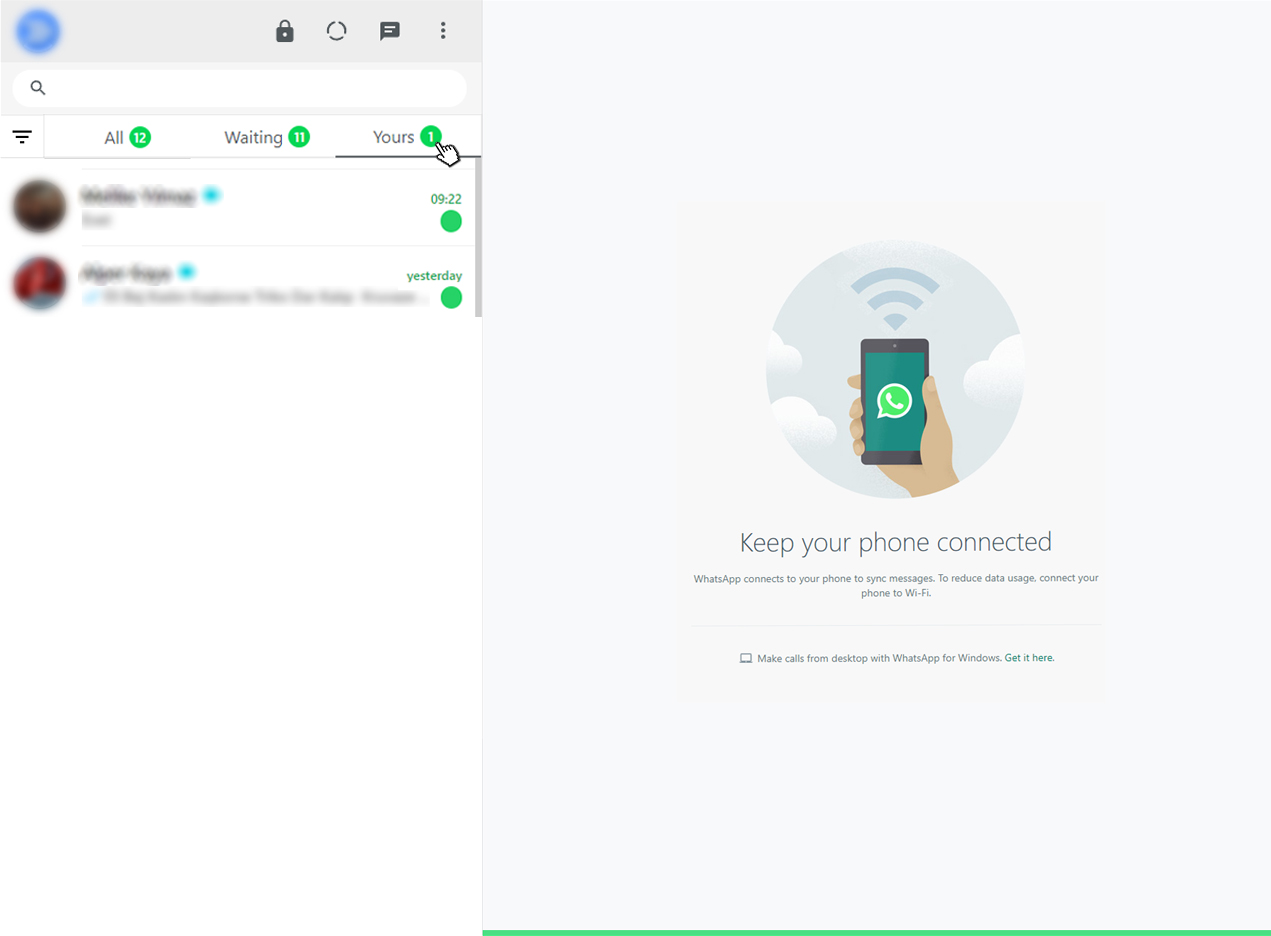
First, you’ll need to install a WhatsApp Chrome extension. One popular option is the “WhatsApp Web” extension, which allows you to access WhatsApp directly from your browser.
- Open Google Chrome and navigate to the Chrome Web Store.
- Search for “WhatsApp Web” or a similar extension.
- Click on the “Add to Chrome” button to install the extension.
Step 2: Connect Your WhatsApp Account
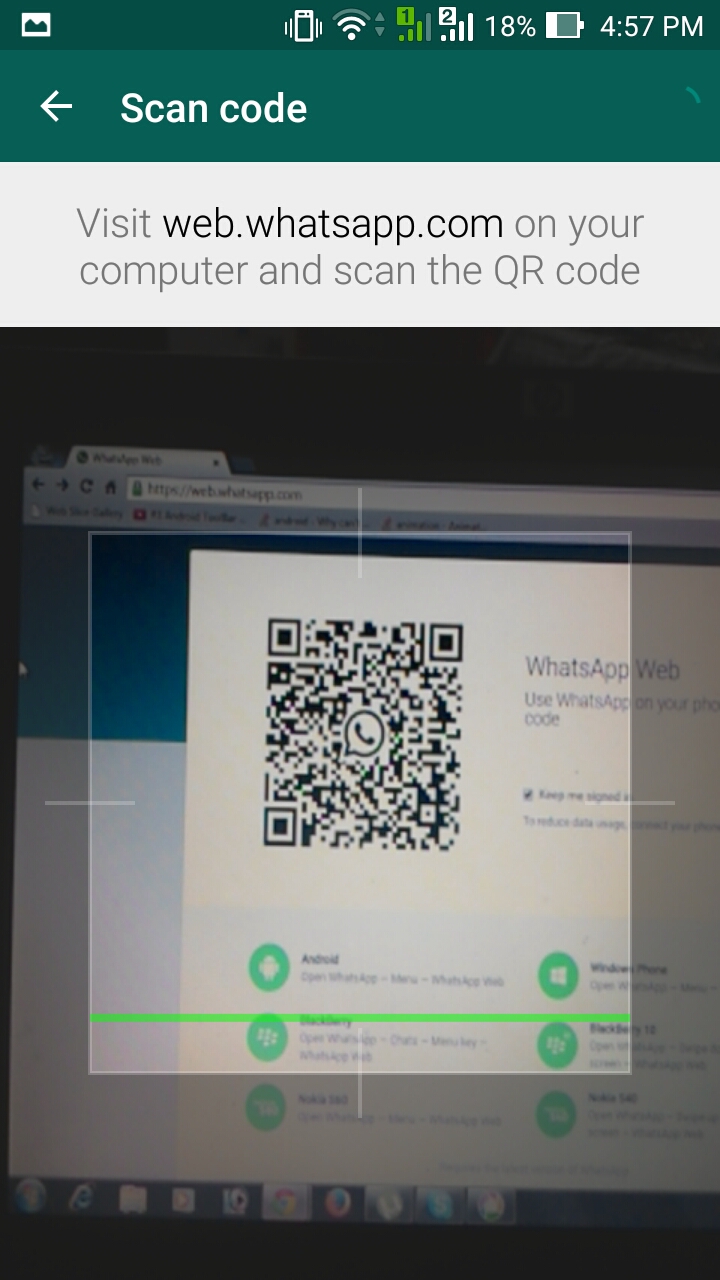
Once the extension is installed, you’ll need to connect it to your WhatsApp account.
- Open the WhatsApp Web extension by clicking on its icon in the browser toolbar.
- You will see a QR code displayed on the screen.
- Open the WhatsApp app on your mobile device and scan the QR code.
- Follow the prompts to complete the pairing process.
Step 3: Replace Tel Links with WhatsApp Links
Now that your WhatsApp Chrome extension is set up, you can replace any tel links with WhatsApp links.
- Identify the tel links you want to replace. These typically look like “tel:+1234567890”.
- Use a WhatsApp link generator tool to create a direct link to a WhatsApp chat. The format should be “https://wa.me/1234567890”.
- Replace the tel link with the new WhatsApp link in your website or application.
Step 4: Test the New Links
After replacing the tel links with WhatsApp links, it’s essential to test them to ensure they work correctly.
- Click on the new WhatsApp link to see if it opens the WhatsApp chat.
- If the link doesn’t work, double-check the phone number and country code.
- Make sure your mobile device is connected to the internet and that WhatsApp is updated to the latest version.
Benefits of Using a WhatsApp Chrome Extension
Switching to a WhatsApp Chrome extension offers several benefits that enhance your communication experience. Here are some key advantages:
- Convenience: Access WhatsApp directly from your browser without switching apps.
- Efficiency: Send messages, generate links, and create QR codes with just a few clicks.
- User-Friendly Interface: Enjoy a more intuitive and streamlined experience compared to the tel link protocol.
Conclusion
Changing from a tel link protocol to a WhatsApp Chrome extension is a simple process that can significantly improve your communication experience. By following the steps outlined above, you can seamlessly transition to a more efficient and user-friendly method of connecting with others. Whether you’re a business owner, customer support team member, or an individual looking to streamline your messaging, a WhatsApp Chrome extension is a valuable tool to have in your digital arsenal.
About the Author