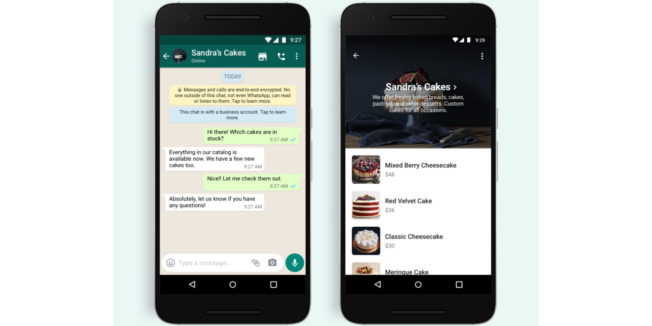
In the fast-paced world of e-commerce, businesses are constantly seeking ways to streamline customer interactions and boost sales. One of the most effective tools for achieving this is the “Buy via WhatsApp” button. This feature allows customers to initiate a purchase directly through WhatsApp, creating a seamless and personalized shopping experience. In 2025, adding a “Buy via WhatsApp” button to your website is not just a trend—it’s a necessity for any business looking to stay competitive.

Why Add a ‘Buy via WhatsApp’ Button?
The “Buy via WhatsApp” button offers several advantages that can significantly enhance your online sales. Here are some key reasons why you should consider integrating this feature:
-
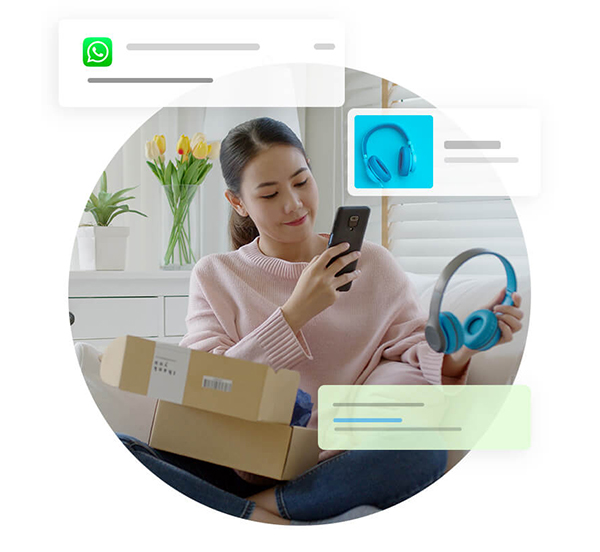
Instant Communication: WhatsApp is one of the most popular messaging apps globally, with over 2 billion users. By adding a “Buy via WhatsApp” button, you provide customers with a direct line of communication, allowing them to ask questions, clarify doubts, and make purchases without leaving your website.
-
Enhanced Customer Experience: The convenience of WhatsApp makes it an ideal platform for customer engagement. Customers can receive real-time assistance, which can lead to higher conversion rates and increased customer satisfaction.
-
Increased Sales: A study by HubSpot found that businesses using WhatsApp for customer service saw a 30% increase in sales. By making it easy for customers to purchase through WhatsApp, you can capitalize on impulse buying and reduce cart abandonment.
-
Personalized Interaction: WhatsApp allows for more personal interactions compared to traditional contact forms. You can send tailored messages, product recommendations, and promotional offers, fostering a stronger connection with your customers.
Step-by-Step Guide to Adding a ‘Buy via WhatsApp’ Button
Adding a “Buy via WhatsApp” button to your website is a straightforward process that can be done with minimal technical knowledge. Here’s a step-by-step guide to help you get started:
- Create a WhatsApp Link:
- Start by generating a WhatsApp link that opens a chat window. Use the following format:
https://wa.me/YourNumber?text=YourMessage - Replace
YourNumberwith your full phone number, including the country code (but without +, spaces, or dashes). - Replace
YourMessagewith a pre-filled message that you want to appear in the chat box.
Example:
https://wa.me/919812345678?text=Hi,+I+want+to+know+more+about+your+services
- Add the Link as a Button on Your Website:
- Once you have the WhatsApp link, you can place it on your website as a button. You can use a basic HTML button, a floating icon, or a custom-styled box.
-
Here’s a basic HTML example:
html

     <a href="https://wa.me/919812345678?text=Hi,+I+want+to+know+more+about+your+services" target="_blank">

       <button>Buy via WhatsApp</button>

</a> -
Make It Visible and Easy to Click:
- Place your WhatsApp button in a visible location on your website. The bottom-right corner is a popular choice for a floating icon.
-
Ensure the button is consistent across all devices, especially mobile, since most WhatsApp users are on smartphones.
-
Test the Button:
- After placing the button, test it on both desktop and mobile devices to ensure it works smoothly.
- Open your site, click the button, and make sure it opens WhatsApp and loads your message correctly.

Alternate Ways to Add a ‘Buy via WhatsApp’ Button
If you prefer not to use code, there are several easy ways to add a “Buy via WhatsApp” button to your website:
- Use WhatsApp’s Official Click to Chat Tool:
-
Visit https://wa.link and enter your number and a pre-filled message. It will generate a short link you can use on your website or in ads.
-
Embed with WhatsApp Business Widget Tools:
-
Use third-party tools like GetButton.io, Elfsight WhatsApp Widget, or Chaty by Premio. These platforms allow you to display the WhatsApp button only on selected pages, control its timing and animation, and even combine multiple chat apps under a single icon.
-
Use Google Tag Manager (No Code Change Needed):
-
If you do not want to touch your website code, you can add a “Buy via WhatsApp” button using Google Tag Manager. Create a new tag (Custom HTML), paste the WhatsApp link/button HTML, set a trigger (e.g., all pages or selected ones), and publish the container.
-
Add via Website Builders (No Coding):
-
If your website is built with tools like Wix, Shopify, Webflow, or Squarespace, they offer built-in or app-store options. For example, Wix has a “Chat Button” in the Add > Contact section, and Shopify has apps like “WhatsApp Chat + Abandoned Cart.”
-
Use QR Code on Desktop Sites:
- For desktop visitors, you can generate a WhatsApp QR Code using https://www.qr-code-generator.com/. Link it to your WhatsApp chat URL and place the QR code on your contact page or sidebar. Users can scan and message you directly.
Final Thoughts
Adding a “Buy via WhatsApp” button to your website is a powerful way to enhance customer engagement and boost sales. By providing a direct and convenient way for customers to interact with your business, you can create a more personalized and efficient shopping experience. Whether you choose to use code, plugins, or website builders, the process is straightforward and can be completed in a matter of minutes.
As you implement this feature, remember to test it thoroughly on both desktop and mobile devices to ensure it works seamlessly. By making it easy for customers to reach out and make purchases, you can build trust, increase conversions, and drive growth for your business.
Frequently Asked Questions
How do I add a ‘Buy via WhatsApp’ button to a Google Site?
– Go to your Google Site editor, choose the section where you want to place the button, then click “Embed” > “Embed Code.” Paste your WhatsApp link as a full HTML button or icon. Once added, adjust the alignment and size as needed. It works on both desktop and mobile versions.
How to set a WhatsApp link on a website?
– Create your link using this format: https://wa.me/YourNumber (with country code, no plus sign or spaces). You can use it inside any button, text link, or image. When clicked, it opens a direct chat window on WhatsApp, making it easy for users to contact you instantly.
Can I add a ‘Buy via WhatsApp’ button without writing any code?
– Yes. You can use tools like GetButton, Elfsight, or WordPress plugins to add a “Buy via WhatsApp” button without touching the code. These tools offer easy setup with custom design options.
Where should I place the ‘Buy via WhatsApp’ button on my website?
– The best spot is usually the bottom-right corner as a floating button. You can also place it in the header, footer, or contact page, wherever users can see it without searching.
About the Author